Is this expense tracker free?
Yes. The Google Sheets copy, the Excel file and the Google Docs guide are free, with no sign-up.
Free spreadsheet + Google Docs guide
A free expense tracker for Google Sheets. Add a row for each expense with a date, a category and an amount, and the Summary tab adds everything up by month and by category.
An Income tab sits next to it, so each month also shows what came in and what was left. The tracker downloads for Excel and comes with a Google Docs guide for a monthly review.
Save a personal copy and check Share settings before entering financial information. Remove the fictional examples before using your own values.
You type on two tabs, Expenses and Income. The Summary tab is calculated from them. The blue cells are yours to fill in.
Use the copy button on this page, or download the Excel file. A Google Sheets copy is saved to your own Drive. Nothing you type is shared with Fillfolio.
On the Summary tab, type the year you are tracking. Rename the 12 categories if you want your own; the list on the Expenses tab follows them.
On the Expenses tab, replace the fictional rows. Add the date, a short description, a category and the amount for each expense.
On the Income tab, add a row each time money comes in, with the amount that reached your account.
Open Summary for the month-by-month totals. Pick a month in Month to review to see that month's spending by category.
If the Without a category line is not zero, an expense has no category or one that is not in your list. Correct it on the Expenses tab.
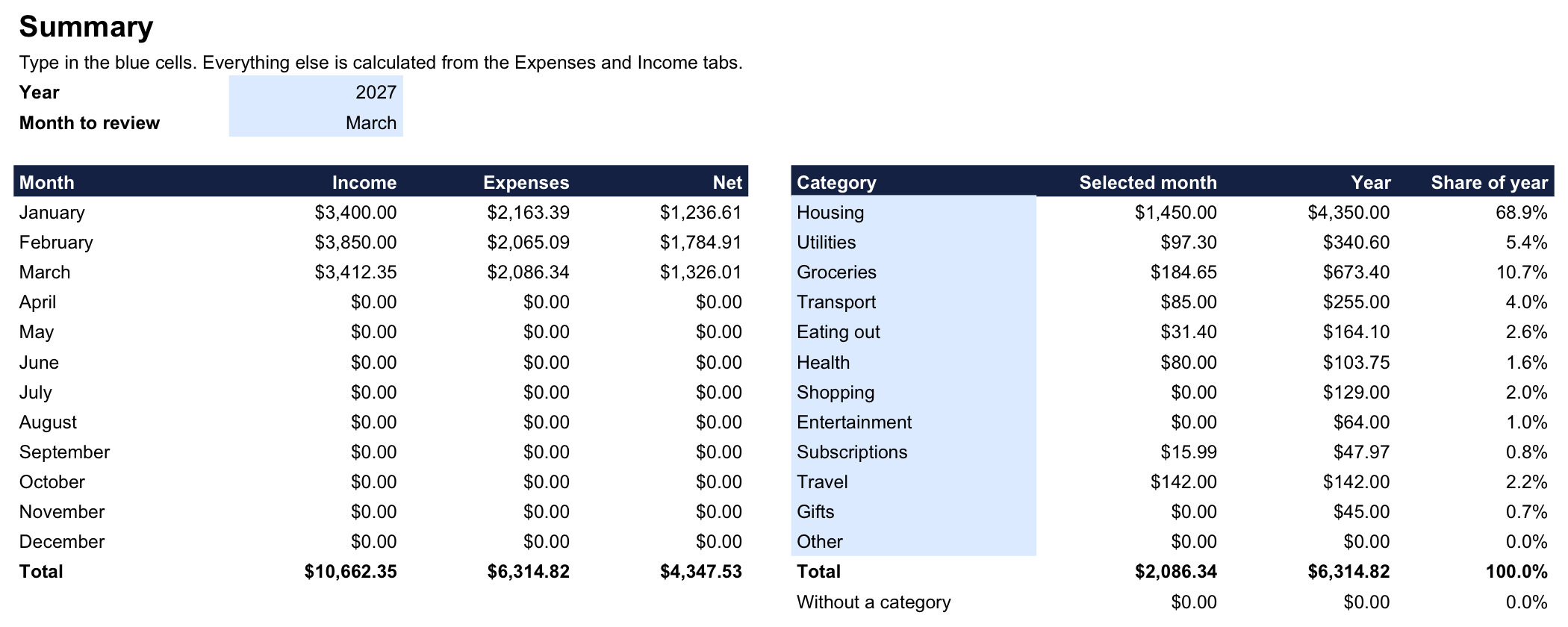
Spending on its own tells you where the money went. Next to income it tells you whether the month worked. The Summary tab puts the two side by side: income, expenses and net for every month, with a total for the year.
Net is income minus expenses. A month where you spent more than came in shows a negative net in red.
The category table shows three numbers for each category: what you spent in the month you picked, what you spent in the year so far, and that category's share of the year's expenses.
The template starts with 12 common categories, from Housing to Other. Rename them on the Summary tab. If you rename a category after you have used it, update the old rows on the Expenses tab as well, or they move to Without a category.
| Income | Expenses | Net | |
|---|---|---|---|
| January 2027 | $3,400.00 | $2,163.39 | $1,236.61 |
| February 2027 | $3,850.00 | $2,065.09 | $1,784.91 |
| March 2027 | $3,412.35 | $2,086.34 | $1,326.01 |
| Total | $10,662.35 | $6,314.82 | $4,347.53 |
Fictional numbers: 28 expenses and 5 income rows. Housing is the largest category at $4,350.00, which is 68.9% of the three months' expenses. Groceries follow at $673.40, or 10.7%.
The Excel download is the same workbook saved as an .xlsx file: the Expenses, Income and Summary tabs with the same formulas, lists and fictional example. Use it as an income and expenses sheet if you keep your records in Excel.
It has no macros. It needs Excel 2019 or later, or Microsoft 365, and also opens in other spreadsheet apps that read .xlsx files.
Yes. The Google Sheets copy, the Excel file and the Google Docs guide are free, with no sign-up.
Yes. Rename any of the 12 categories on the Summary tab. The category list on the Expenses tab reads from the same cells.
Enter it on the Expenses tab as a negative amount, in the same category as the original purchase. It then reduces that category's total.
No. Moving money between your own accounts, or paying a credit card bill, is not a new expense. Enter the purchases themselves.
Use one file for each year. Make a fresh copy in January and keep the old file as your record. Rows dated outside the year on the Summary tab are not counted.
Yes. The Excel file has the same tabs and formulas as the Google Sheets copy and uses no macros.
The template uses fictional example data. Fillfolio is tracking software and does not provide financial, tax or legal advice.