Is this subscription tracker template free?
Yes. The Google Sheets copy, the Excel file and the Google Docs guide are free, with no sign-up. You copy the file to your own Google Drive or download it.
Free spreadsheet + Google Docs guide
A free subscription tracker template for Google Sheets, with an Excel download. List what you pay for, and the sheet shows what it all costs per month and per year, when each subscription renews next and the last day to cancel.
It handles weekly, monthly, quarterly and yearly plans in one list, and it comes with a Google Docs guide for a monthly review.
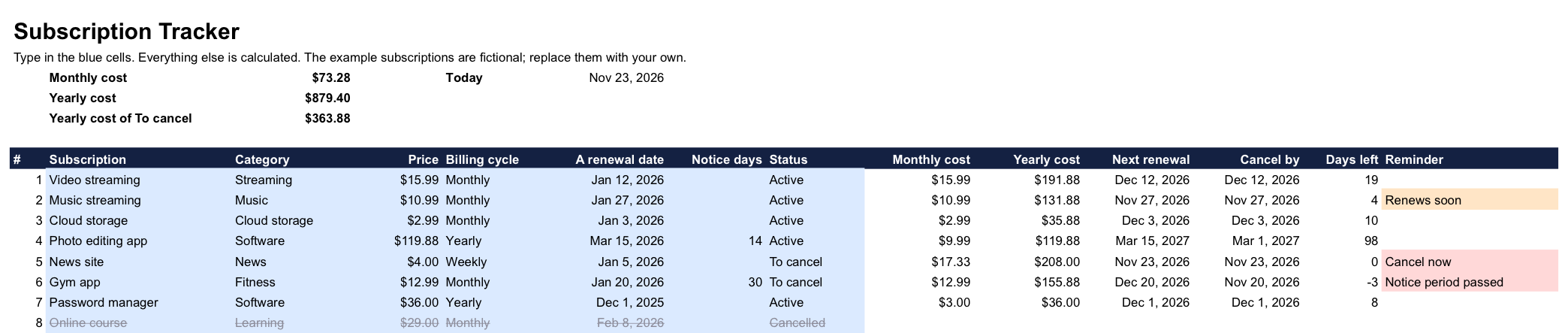
Save a personal copy and check Share settings before entering financial information. Remove the fictional examples before using your own values.
You type in the blue cells on the Subscriptions tab. The rest of each row is calculated.
Use the copy button on this page. Google asks you to confirm, then saves a private copy to your Drive. Nothing you type is shared with Fillfolio.
On the Subscriptions tab, replace the fictional example rows. Enter each subscription's name, category, price and billing cycle. A bank or card statement helps you find them all.
Type any date the subscription renewed or will renew. You do not have to update it: the sheet keeps finding the next renewal from it.
If a provider needs notice before you cancel, such as 30 days, type the number of days. The cancel-by date moves earlier by that much.
Set Status to To cancel. The sheet adds up what those subscriptions cost per year and warns you when a cancel-by date is close.
Set Status to Cancelled. The row stays in your list as a record, shown struck through, and no longer counts toward the totals.
Each time you open the file, the sheet compares today's date with every renewal. An active subscription that renews within 7 days shows Renews soon.
For a subscription you set to To cancel, it shows Cancel now when the cancel-by date is within 7 days. If the notice period for the next renewal has already passed, it shows Notice period passed: cancel anyway, so the renewal after that one does not go through.
The spreadsheet does not send emails or notifications. You see the reminders when you open it.
| Subscriptions | Eight, from cloud storage at $2.99 a month to a photo editing app at $119.88 a year |
| Monthly cost | $73.28 |
| Yearly cost | $879.40 |
| Marked To cancel | A news site at $4 a week and a gym app at $12.99 a month: $363.88 a year |
| Marked Cancelled | An online course at $29 a month, not counted in the totals |
Fictional subscriptions. The $4 weekly plan costs $208 a year, more than the $15.99 monthly video plan at $191.88. Renewal dates and reminders depend on today's date, so the example looks different on different days.
The Excel download is the same workbook saved as an .xlsx file, with the same tabs, formulas, color rules and fictional example. It has no macros. It needs Excel 2019 or later, or Microsoft 365, and also opens in other spreadsheet apps that read .xlsx files.
Everything is calculated inside the file, so it works offline. Renewal dates and reminders use the date on your computer.
Yes. The Google Sheets copy, the Excel file and the Google Docs guide are free, with no sign-up. You copy the file to your own Google Drive or download it.
Up to 30, in 10 categories that you can rename.
No. The spreadsheet is manual. You enter each subscription yourself, and nothing is sent to Fillfolio. A bank or card statement is the easiest place to find them.
It does not send emails or notifications. When you open the file, renewals within 7 days and cancel-by dates within 7 days are highlighted.
No. Enter one renewal date and the billing cycle, and the sheet works out the next renewal each time you open it.
Yes. The Excel file has the same tabs, formulas and color rules as the Google Sheets copy and uses no macros.
The template uses fictional example data. Fillfolio is tracking software and does not provide financial, tax or legal advice.