Is this savings tracker free?
Yes. The Google Sheets copy, the Excel file and the Google Docs guide are free, with no sign-up.
Free spreadsheet + Google Docs guide
A free savings tracker for Google Sheets. List each savings goal with its target and date, and the sheet shows how far along you are and how much to put aside each month.
This savings tracker template also has a tab for sinking funds, one for an emergency fund and one for a savings challenge. Each tab works on its own. It downloads for Excel and comes with a Google Docs guide for a monthly check-in.
Save a personal copy and check Share settings before entering financial information. Remove the fictional examples before using your own values.
Four tabs cover the four common ways people save. The blue cells are yours to fill in; the rest is calculated.
Use the copy button on this page, or download the Excel file. A Google Sheets copy is saved to your own Drive. Nothing you type is shared with Fillfolio.
Each tab works on its own. Start with one, and add the others when they become useful.
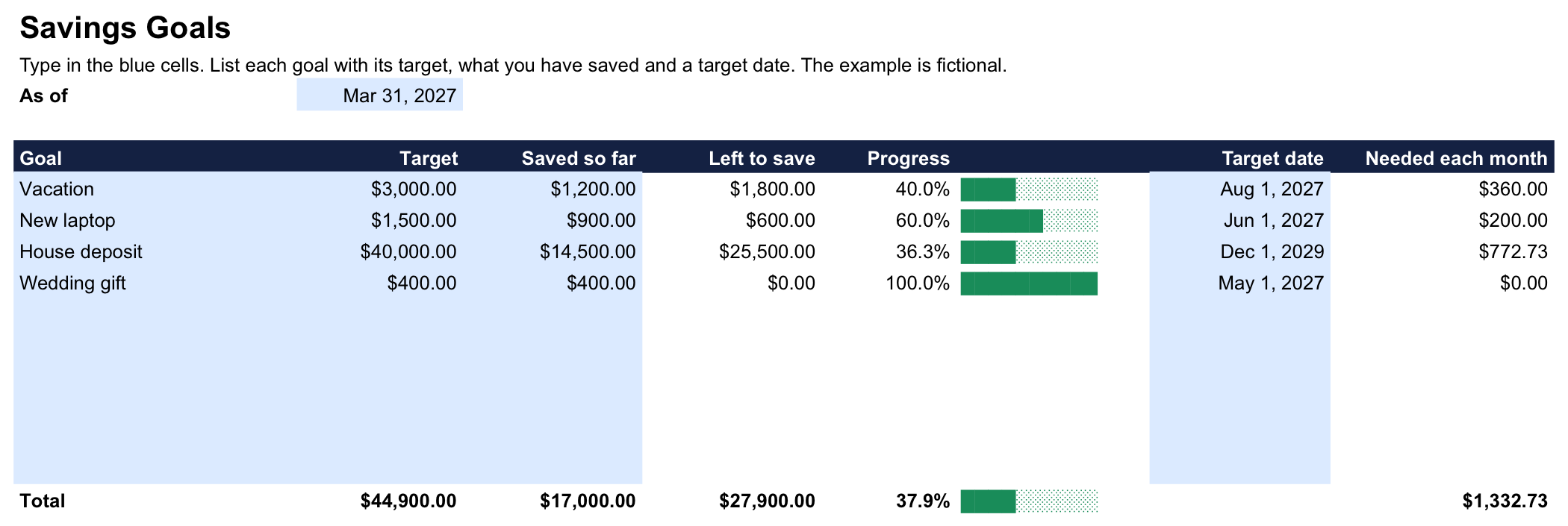
On Savings Goals, replace the fictional rows with your own goals, targets, amounts saved and target dates. Set the As of date to today.
Needed each month is the amount left divided by the months until the target date. The total at the bottom covers all your goals.
Change Saved so far and the As of date. The progress bars and monthly amounts follow.
A sinking fund is money you set aside a little at a time for a cost you know is coming: car insurance once a year, holiday presents in December, a repair that will happen sooner or later. When the bill arrives, the money is already there.
On the Sinking Funds tab, give each cost its own fund and enter what it costs in a year. The sheet divides by 12 to show what to set aside each month. Add the next bill's date and amount, and it shows how much you still need to save for that bill.
The Emergency Fund tab sets the target for you. Enter your essential monthly expenses, such as housing, food, utilities, insurance and minimum debt payments, and the number of months you want to cover. The target is one multiplied by the other.
Log each deposit, and each withdrawal as a negative amount. The tab shows the balance, what is left to save, your progress and how many months of expenses the fund covers today. How many months to aim for is your decision; many people choose between three and six.
The Savings Challenge tab has two challenges side by side. Use either, or both.
| Savings goals | Four goals with targets of $44,900; $17,000 saved, 37.9% |
| Needed each month for the goals | $1,332.73, of which $772.73 is for a house deposit |
| Sinking funds | Six funds costing $4,620 a year: $385 to set aside each month |
| Emergency fund target | $2,800 of essential expenses × 6 months = $16,800 |
| Emergency fund saved | $5,850, which is 34.8% of the target and 2.1 months of expenses |
| Savings challenges | $78 saved after 12 weeks of the 52-week challenge; $70 on the $5 grid |
Fictional numbers as of March 31, 2027. The monthly amount for each goal is what is left divided by the whole months to its target date. For the house deposit that is $25,500 over 33 months.
The Excel download is the same workbook saved as an .xlsx file, with the same tabs, formulas, progress bars and fictional example. It has no macros. It needs Excel 2019 or later, or Microsoft 365, and also opens in other spreadsheet apps that read .xlsx files.
Yes. The Google Sheets copy, the Excel file and the Google Docs guide are free, with no sign-up.
A savings goal is a one-off target with a date, such as a vacation. A sinking fund is for a cost that keeps coming back, such as yearly insurance, so you keep paying into it after each bill.
That depends on your situation. The tab multiplies your essential monthly expenses by the number of months you choose, so you can see what three months or six months would mean for you.
$1,378 if you start at $1 and add $1 each week. With a $2 step the total is $2,756, and with a $5 step it is $6,890.
No. The same money may appear on more than one tab, for example a challenge that feeds a goal. For a total across accounts, use a net worth tracker.
Yes. The Excel file has the same tabs and formulas as the Google Sheets copy and uses no macros.
The template uses fictional example data. Fillfolio is tracking software and does not provide financial, tax or legal advice.