Is this zero-based budget template free?
Yes. The Google Sheets copy, the Excel file and the Google Docs guide are free, with no sign-up. You copy the file to your own Google Drive or download it.
Free spreadsheet + Google Docs guide
A free zero-based budget template for Google Sheets, with an Excel download. Enter your income, then assign every dollar to a category until Left to assign reaches $0.
During the month, log what you spend and the sheet shows what is left in each category. It comes with a Google Docs guide for a monthly review.
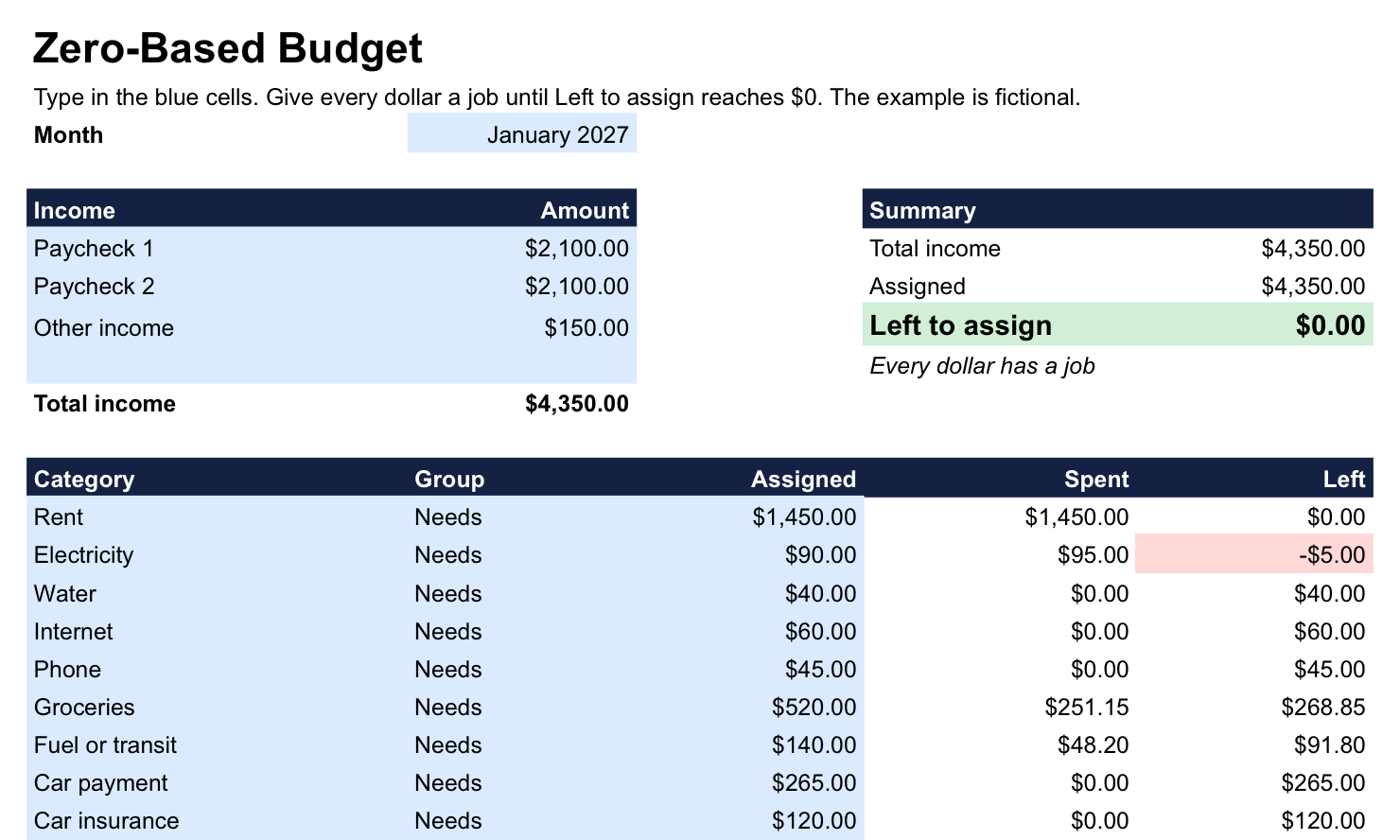
Save a personal copy and check Share settings before entering financial information. Remove the fictional examples before using your own values.
You type in the blue cells. The totals, the amount left to assign and the amount left in each category are calculated.
In a zero-based budget, income minus everything you assign equals zero. Every dollar gets a job before the month starts: rent, groceries, a debt payment, the emergency fund.
It does not mean spending everything. Savings and extra debt payments are categories like any other, so money you set aside is assigned too. What it removes is money with no plan.
Use the copy button on this page. Google asks you to confirm, then saves a private copy to your Drive. Nothing you type is shared with Fillfolio.
On the Budget tab, type the month and the take-home income you expect: paychecks and anything else.
Replace the fictional example rows. Start with bills you must pay, then food and transport, then savings and debt, then everything else. A Group column lets you label each one as needs, wants, savings, debt or giving.
Type an amount in Assigned for each category. Keep going until Left to assign shows $0 and the box turns green.
Add each purchase to the Spending Log and pick its category. The Budget tab shows what you spent and what is left.
If a category runs out, lower another category's Assigned amount and raise this one by the same amount. Left to assign stays at $0.
| Income | Two paychecks of $2,100 and $150 of other income: $4,350 |
| Assigned | $4,350 across 19 categories |
| Left to assign | $0 |
| Savings and debt | $875 to savings (emergency fund, retirement, vacation) and $200 to debt payments |
| Spent so far | $1,915.85 in seven logged purchases |
| Over budget | Electricity: $95 spent against $90 assigned |
Fictional numbers for January 2027. To fix the electricity line, lower another category by $5 and raise electricity to $95, so Left to assign stays at $0.
The Excel download is the same workbook saved as an .xlsx file, with the same tabs, formulas, color rules and fictional example. It has no macros. It needs Excel 2019 or later, or Microsoft 365, and also opens in other spreadsheet apps that read .xlsx files.
Everything is calculated inside the file, so it works offline.
Yes. The Google Sheets copy, the Excel file and the Google Docs guide are free, with no sign-up. You copy the file to your own Google Drive or download it.
No. It means every dollar is assigned. Savings and debt payments are categories too, so money you set aside counts as assigned.
Update the income table. Left to assign moves above or below zero, and you adjust the categories until it is back at $0.
Move money from another category: lower one Assigned amount and raise the other by the same amount. The total assigned stays the same.
Up to 30 categories and 200 logged purchases in one month's file. Make a fresh copy for each month.
No. The spreadsheet is manual. You type your income, your plan and your purchases, and nothing is sent to Fillfolio.
The template uses fictional example data. Fillfolio is tracking software and does not provide financial, tax or legal advice.